Use this guide if your site loads Google Analytics 4 through Google Tag Manager (GTM). Once you've set it up, you can see your OptiMonk campaigns' performance in GA4.
OptiMonk sends one event, optimonk_campaign_event, for campaign impressions, signups, "no thanks" clicks and closes. Your visitors' cookie consent applies.
1. Turn on event reporting for your domain
Nothing is sent until you turn this on.
In OptiMonk, go to Settings → Domains.
Open the row of your domain.
Turn on Analytics event reporting.
This switch applies to every campaign on the domain. You can check its state on any campaign's Integrations tab, on the Google Analytics card.
If Google Analytics runs directly on your site, without Tag Manager, you're done. If you use Tag Manager, continue with step 2.
2. Import the OptiMonk container (recommended)
In the same domain row, click Download container. The OM_GA4.json file downloads. The button only appears while Analytics event reporting is on.
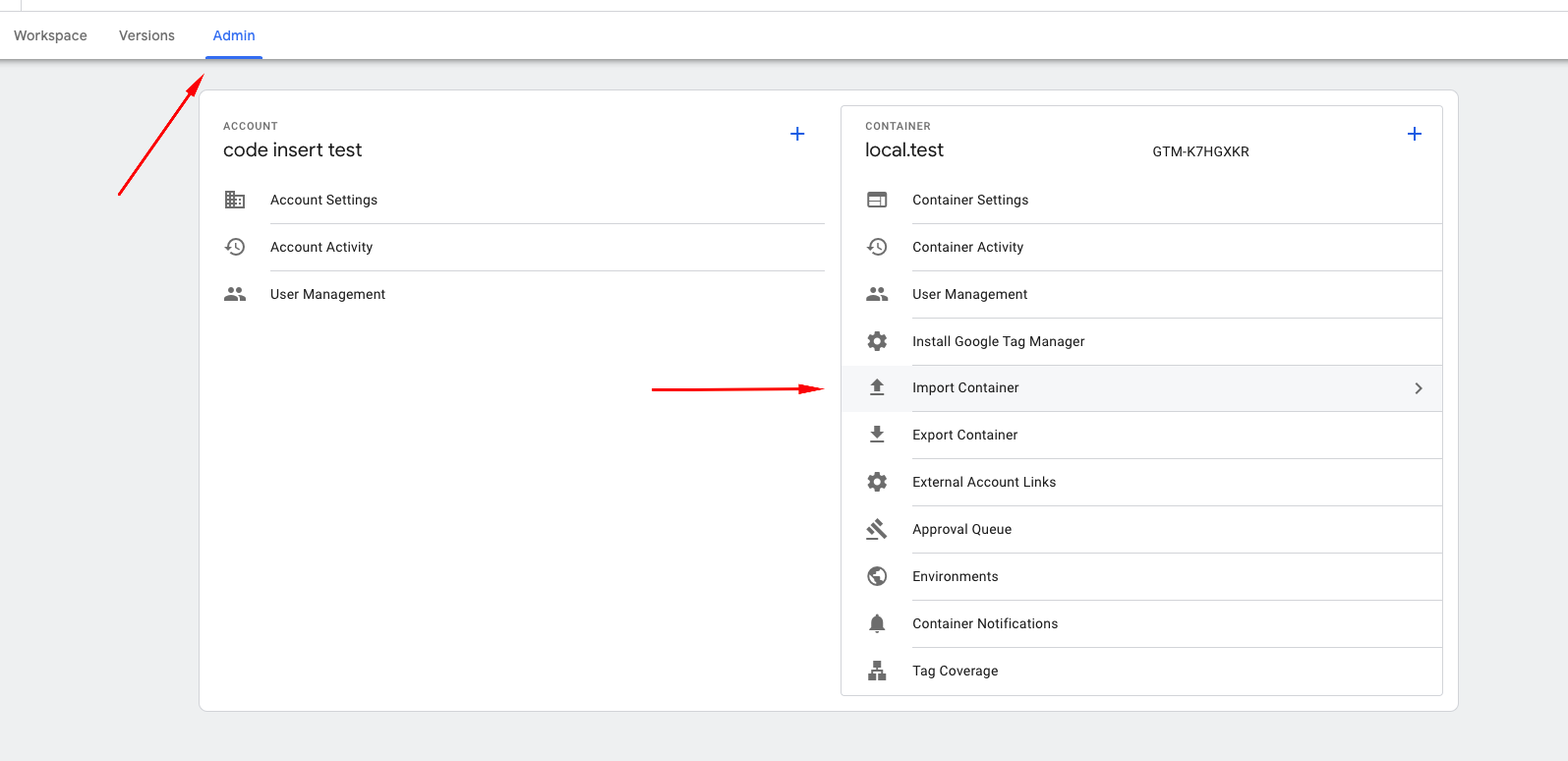
Open Google Tag Manager, go to Admin, then Import Container.
Select OM_GA4.json, choose your workspace, and select Merge so your existing tags are kept.
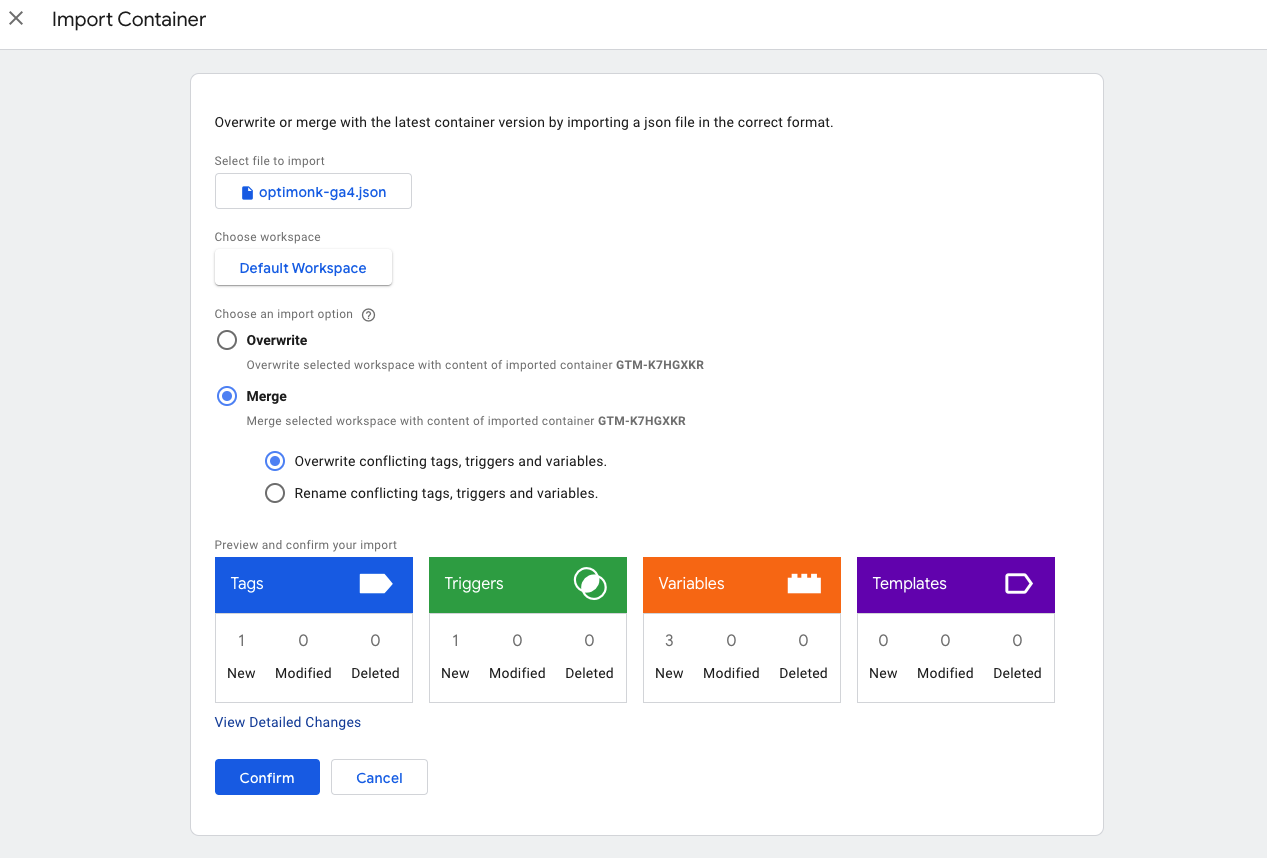
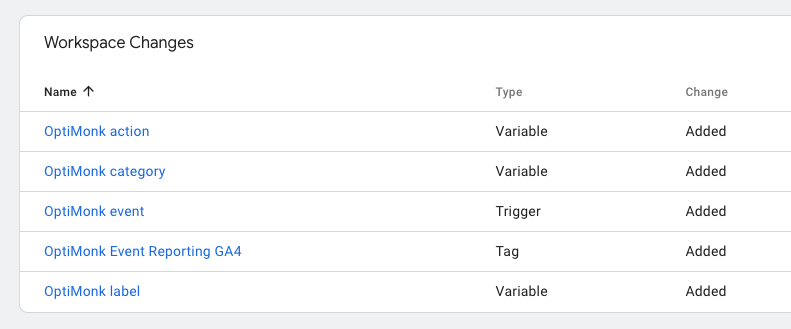
The import adds these items to your workspace:
Tags: GA4 - OptiMonk and GA4 - OM Multi-campaign A/B test
Triggers: OptiMonk campaign event and OptiMonk multi-campaign A/B test event
Variables: OM - campaign name, OM - campaign id, OM - variant name, OM - action, OM - experience name, OM - group name and OM - ab test name
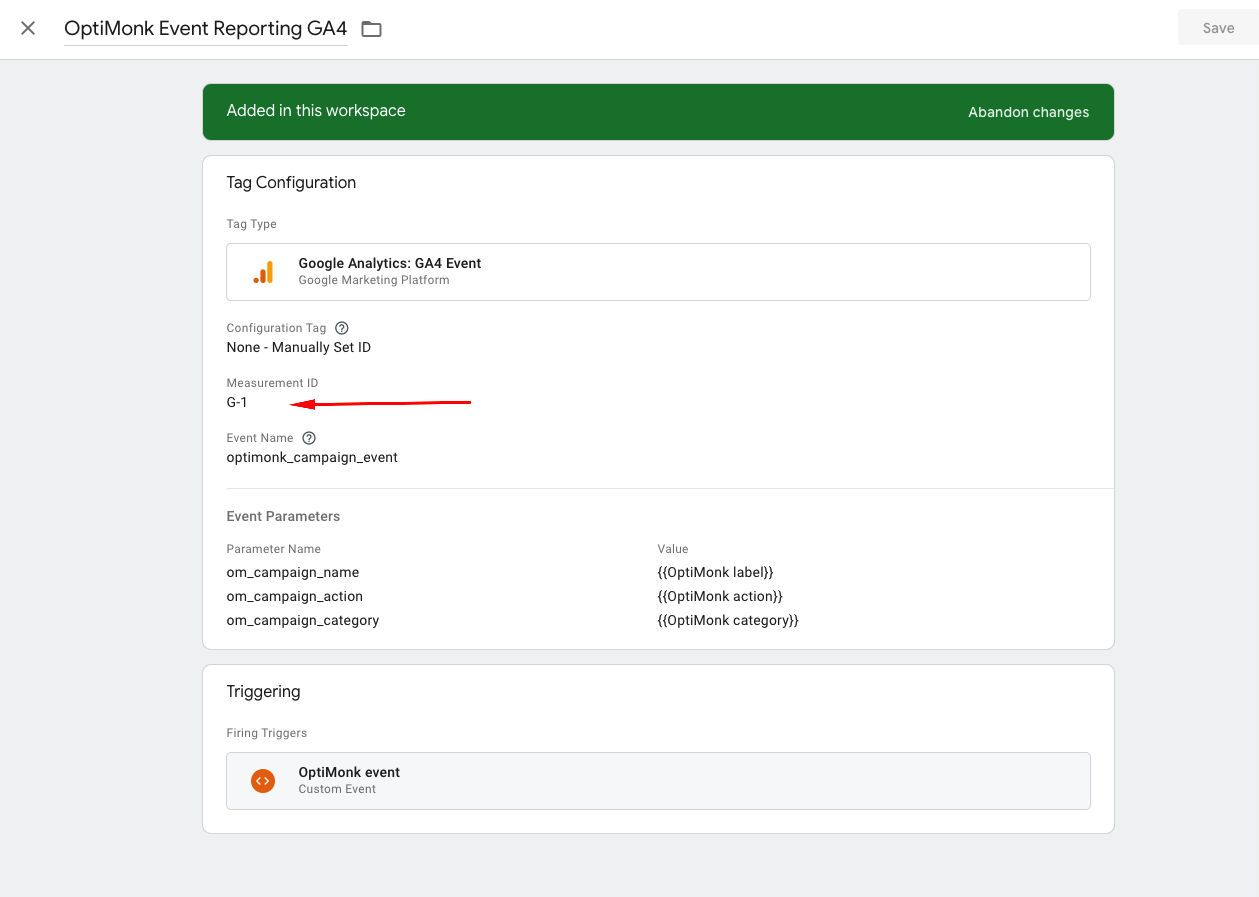
Open both tags and replace the placeholder measurement ID (G-1234) with your own GA4 measurement ID.
Save, then Submit and publish your changes in Tag Manager.
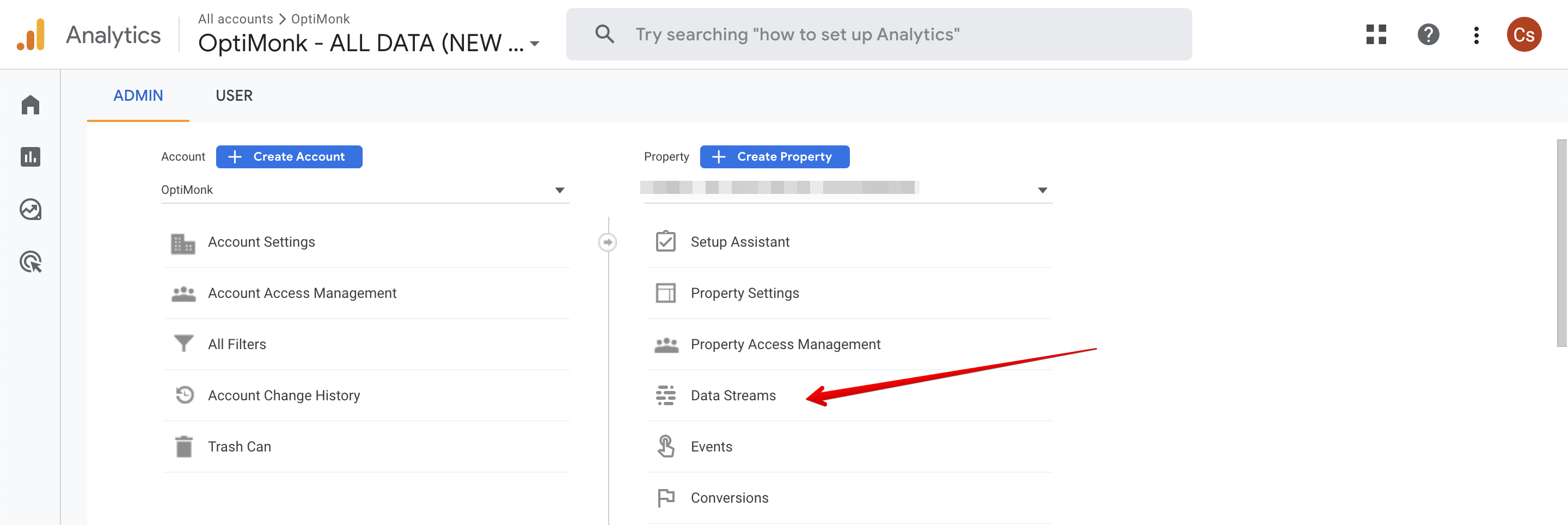
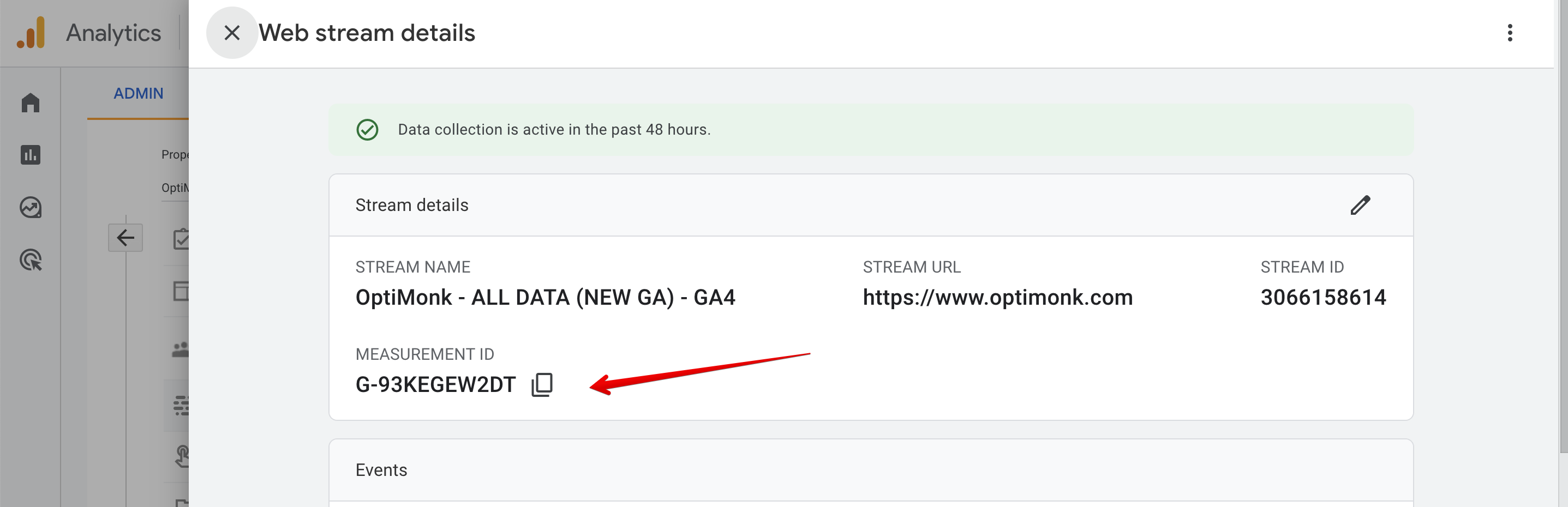
To find your measurement ID, go to Admin → Data Streams in GA4 and click the data stream that receives your site's traffic.
3. Or set up Tag Manager manually
Skip this step if you imported the container.
Create four Data Layer Variables (version 2):
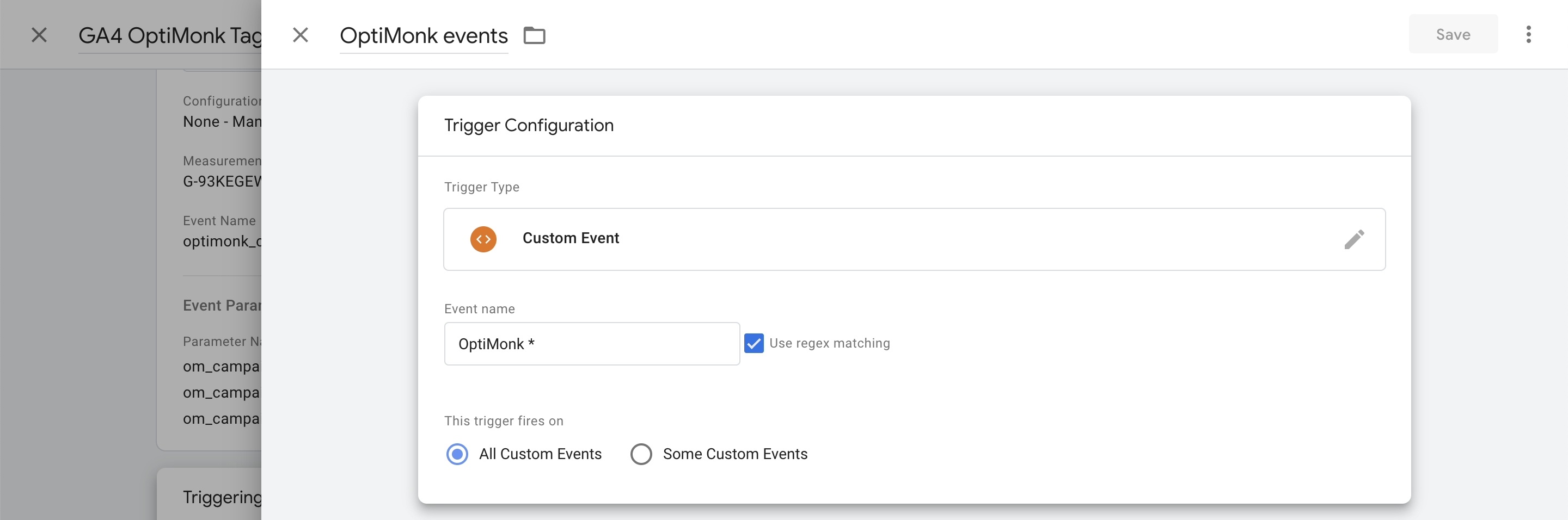
Variable name Data Layer Variable Name OM - campaign name campaign_name OM - campaign id campaign_id OM - variant name variant_name OM - action action Create a Custom Event trigger with the event name optimonk_campaign_event.
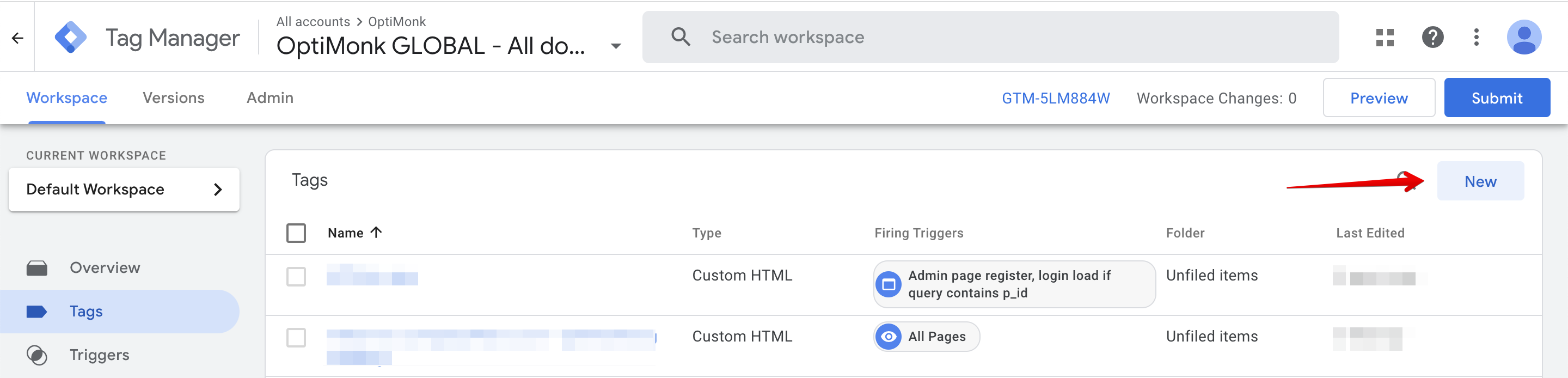
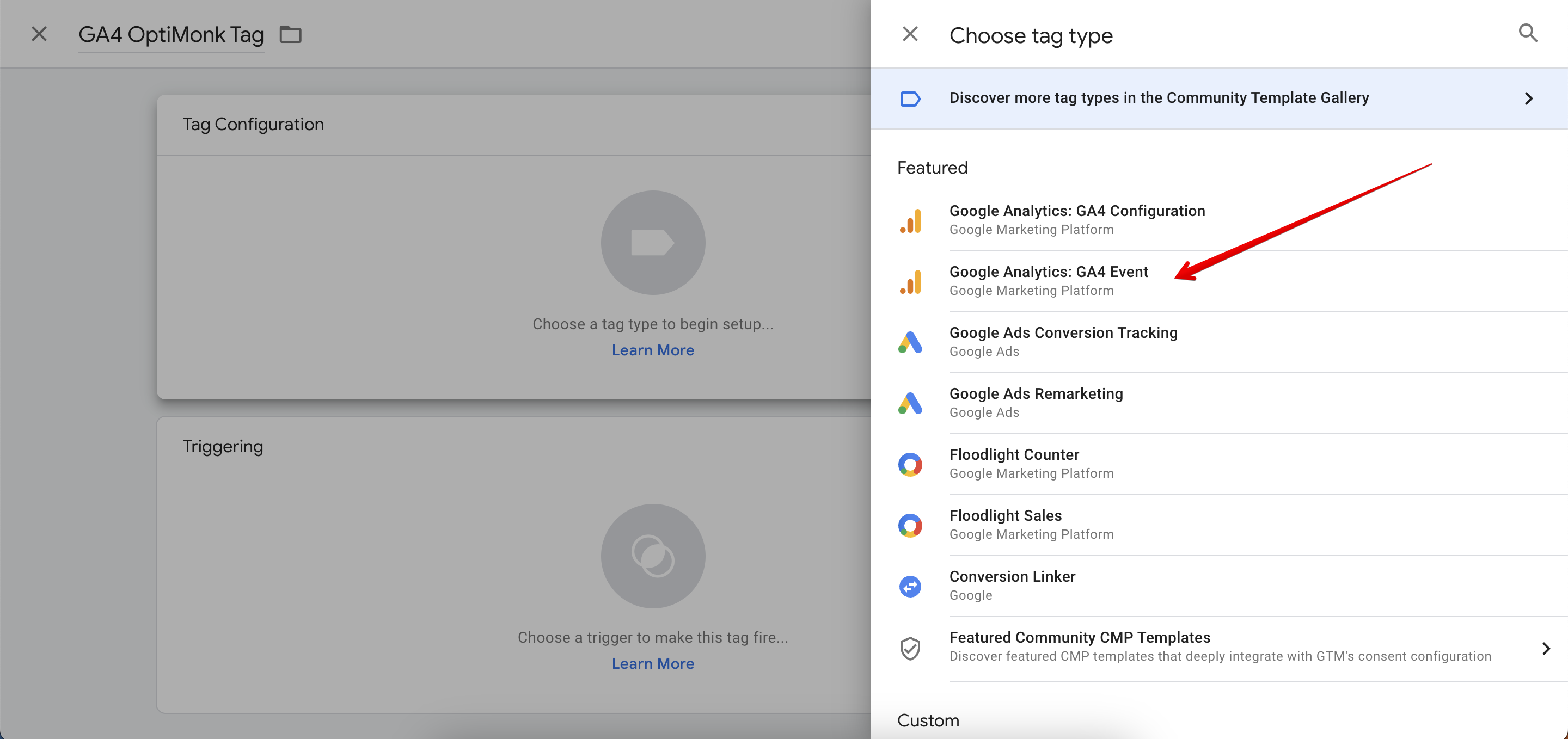
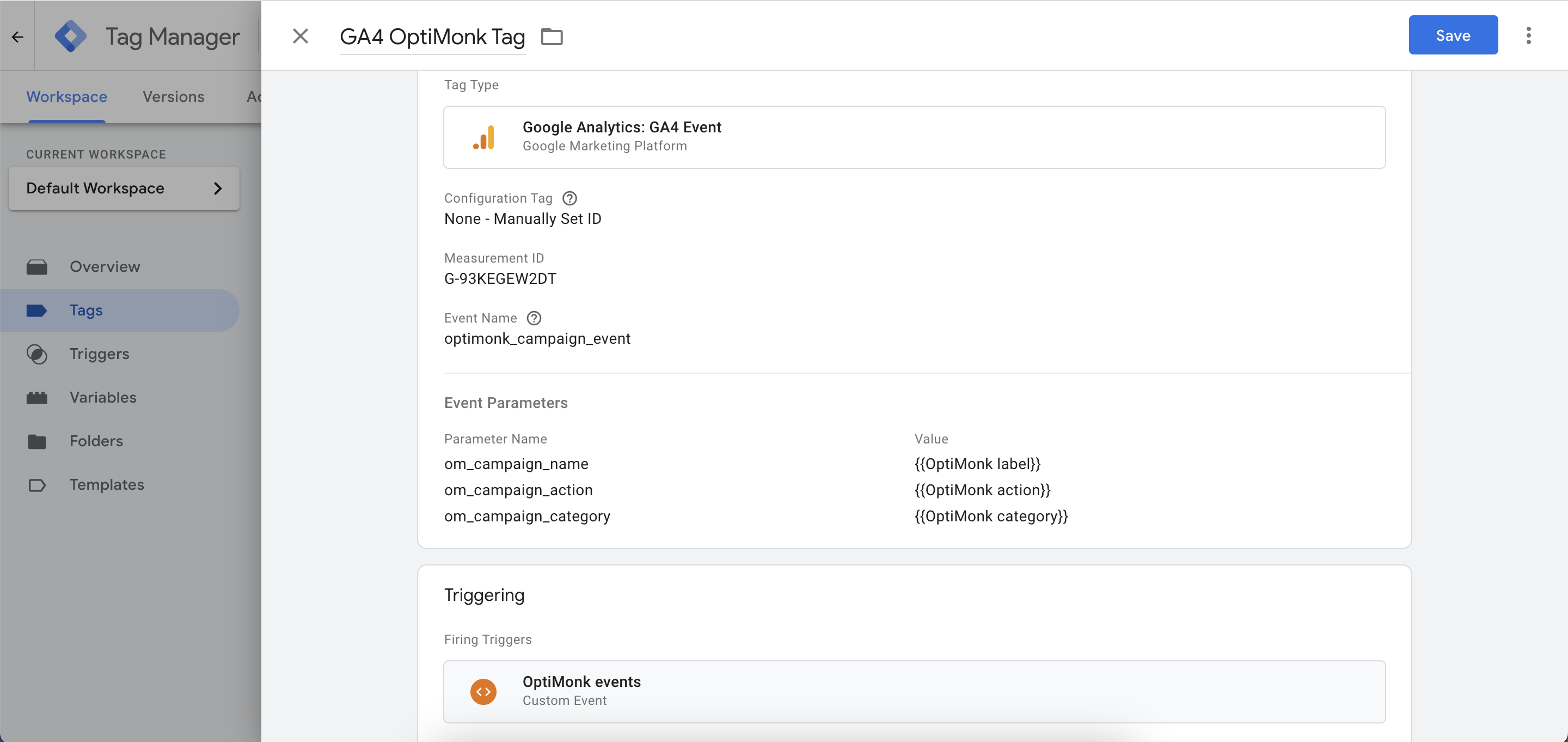
Click New Tag and choose Google Analytics: GA4 Event as the tag type.
Enter your GA4 measurement ID, and set the event name to optimonk_campaign_event.
Add these event parameters:
Parameter name Value om_campaign_name {{OM - campaign name}} om_campaign_action {{OM - action}} om_campaign_id {{OM - campaign id}} om_campaign_variant_name {{OM - variant name}} 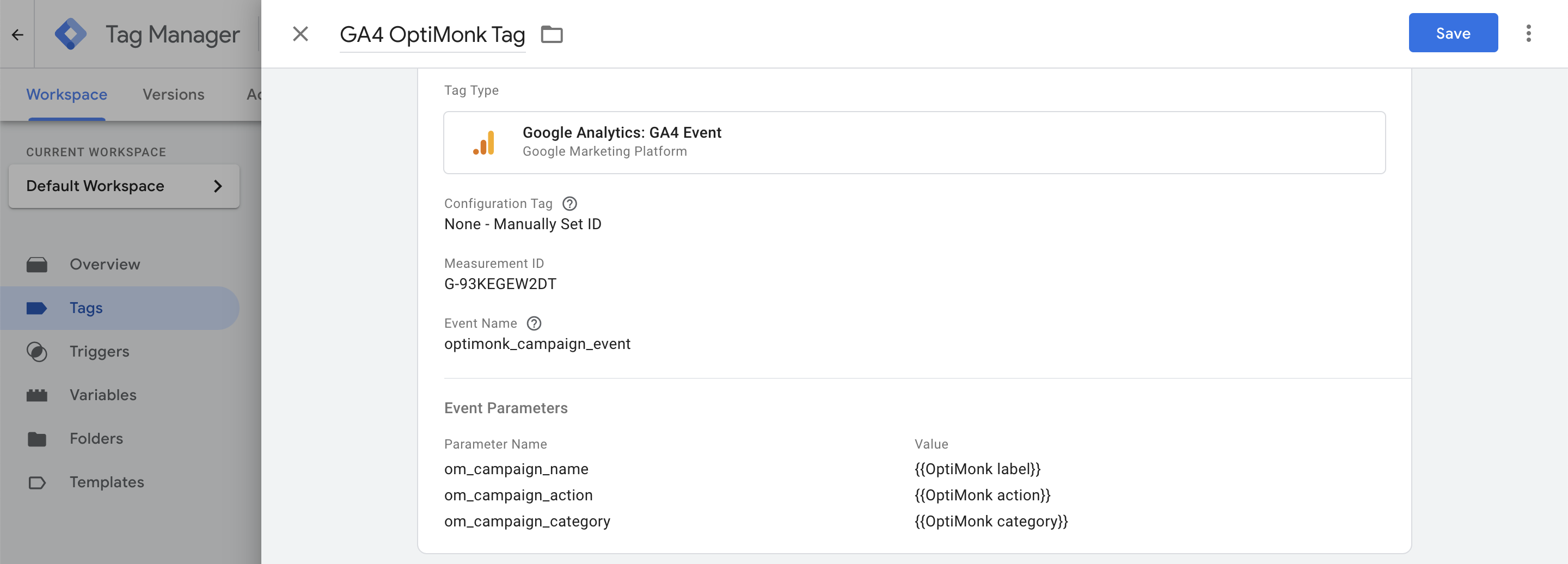
Set the trigger from step 2 as the firing trigger, then save the tag.
Submit your changes in Tag Manager.

The event at a glance
Each optimonk_campaign_event in GA4 carries these parameters:
| Parameter | Description |
|---|---|
| om_campaign_name | The campaign's name |
| om_campaign_id | The campaign's ID |
| om_campaign_variant_name | The variant (A/B test) name |
| om_campaign_action | What the visitor did: impression, conversion, closex or rejected |
Action values: impression (the campaign was shown), conversion (the campaign was filled out), closex (the visitor clicked the closing X) and rejected (the visitor clicked a "no thanks" link).
4. Set up custom definitions in Google Analytics 4
Open Google Analytics 4, go to Admin, then Custom definitions.
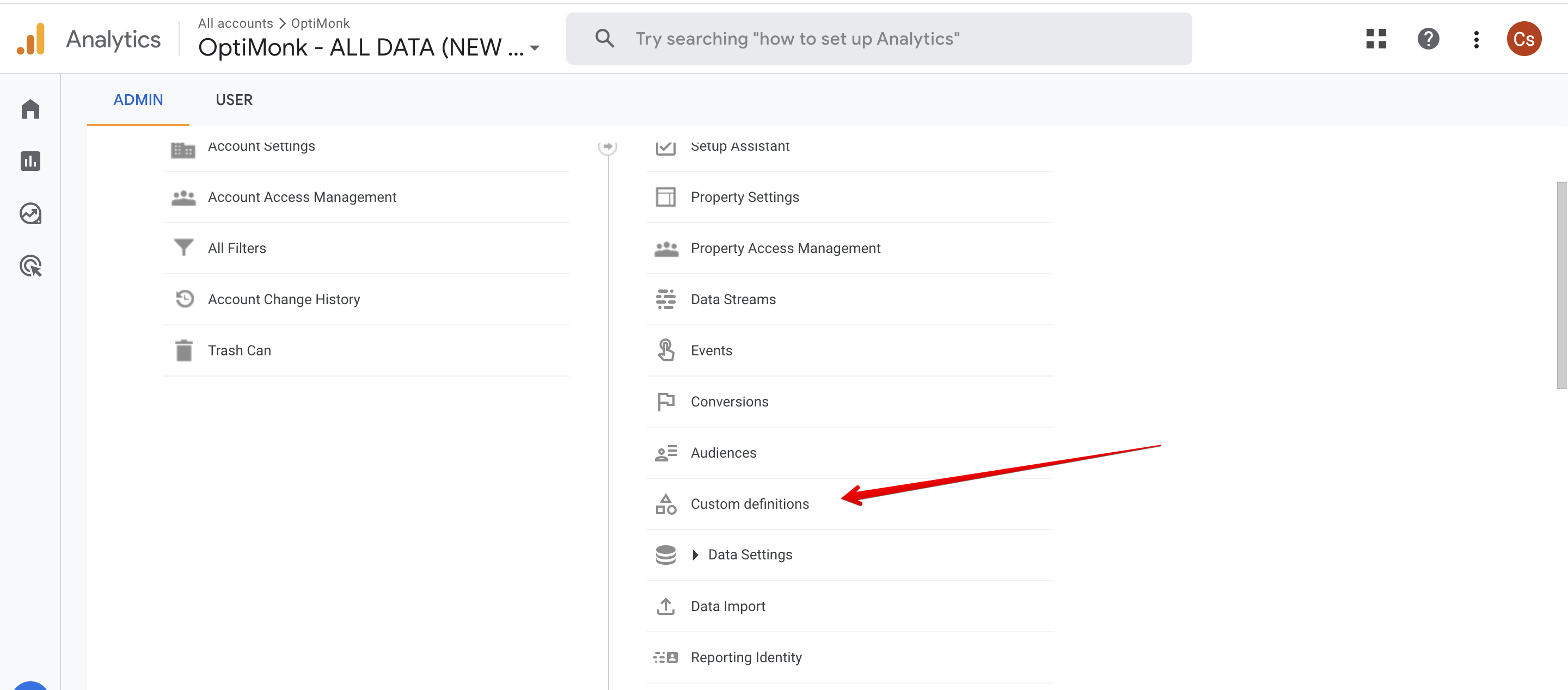
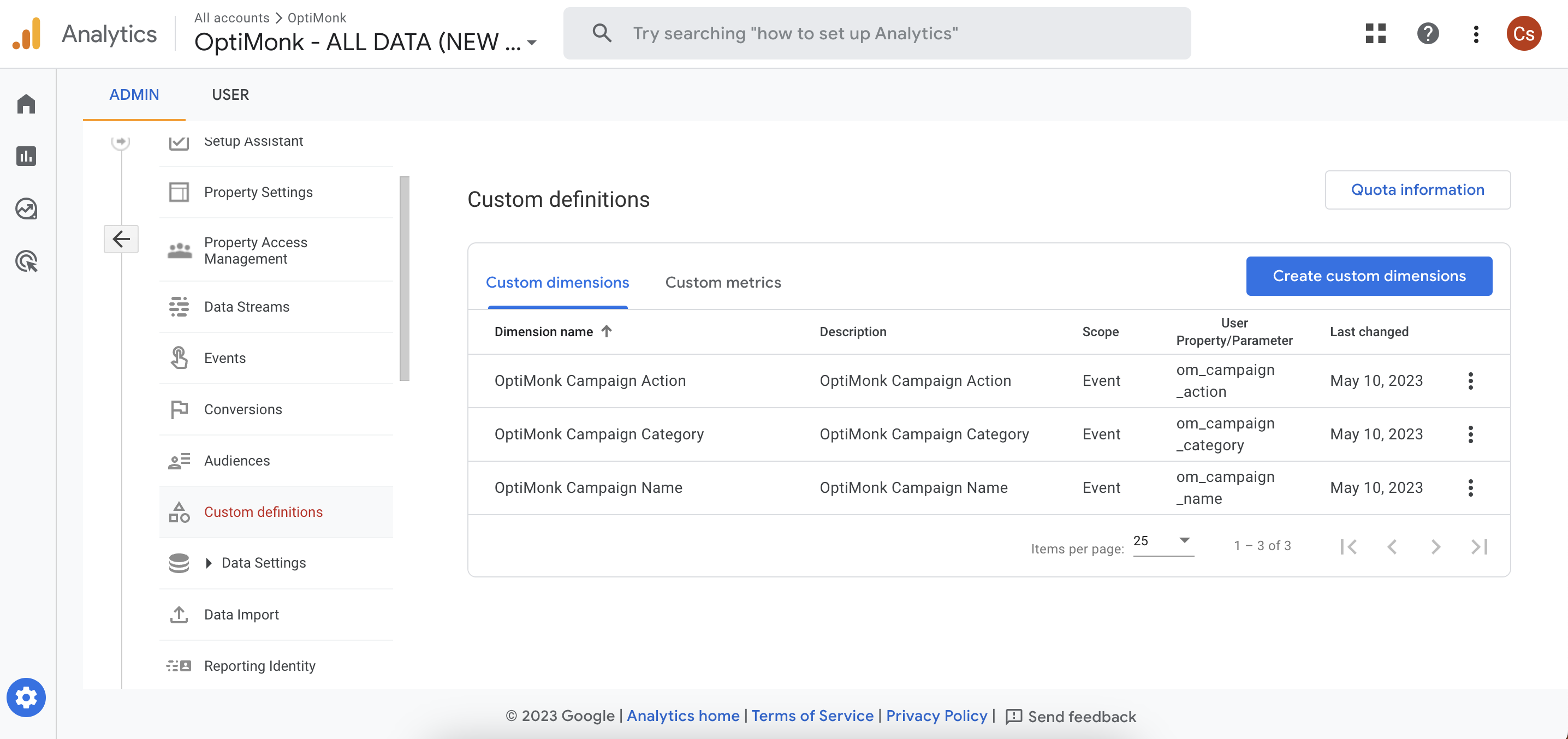
Create these four custom definitions:
OptiMonk Campaign Name (om_campaign_name)
OptiMonk Campaign Action (om_campaign_action)
OptiMonk Campaign ID (om_campaign_id)
OptiMonk Campaign Variant Name (om_campaign_variant_name)
❗ After this, wait up to 24 hours before you continue. GA4 needs this time to recognise the events, because most GA4 settings are not real-time.
5. Set up audiences
Create two audiences based on the event:
OptiMonk Shown: users who have seen any OptiMonk campaign (at least 1 impression).
OptiMonk Filled: users who have filled out any OptiMonk campaign (at least 1 conversion).
You can also create audiences for closex (users who clicked the closing X) and rejected (users who clicked a "no thanks" link).
In Google Analytics 4, go to Admin and click New audience.
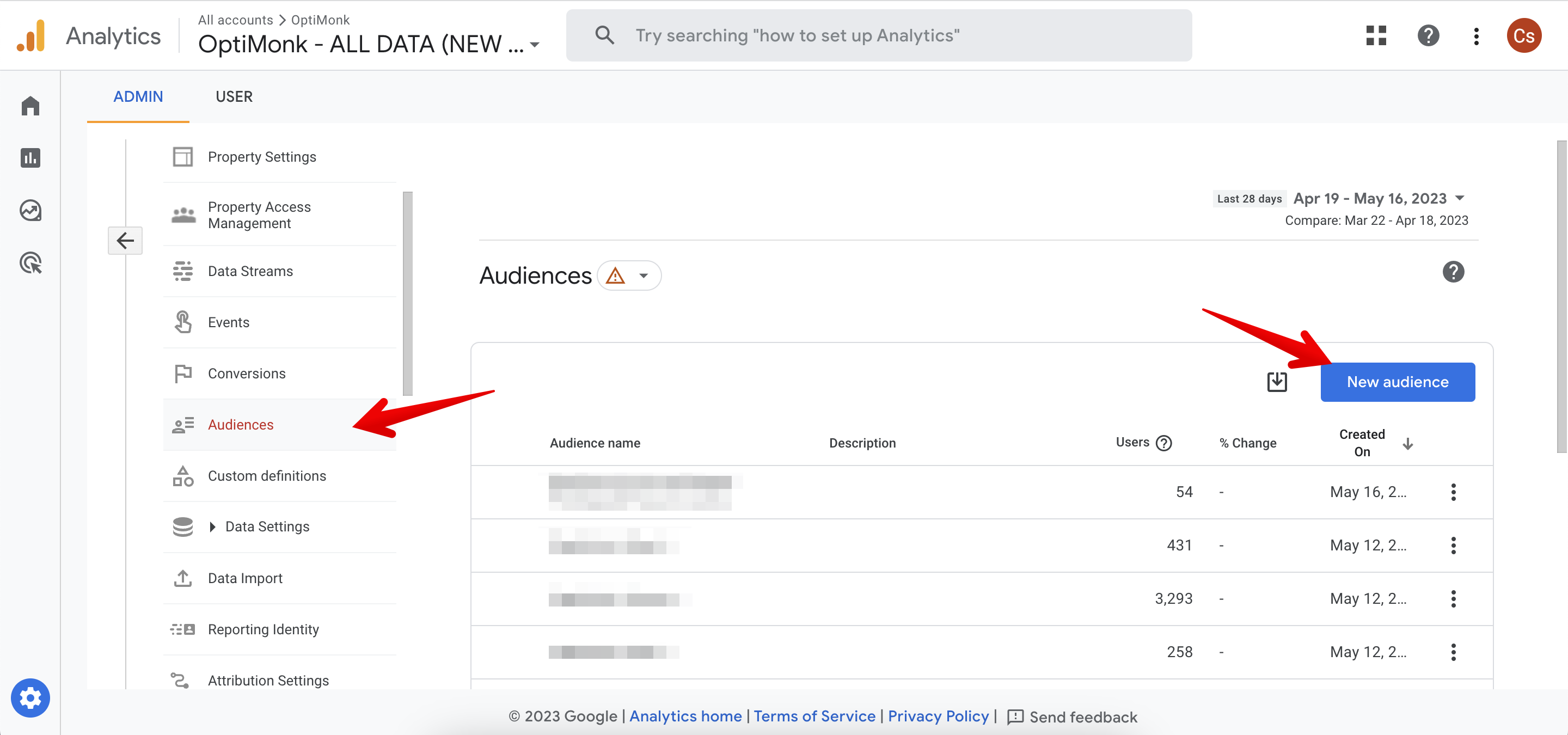
In the Include Users dropdown, find optimonk_campaign_event.
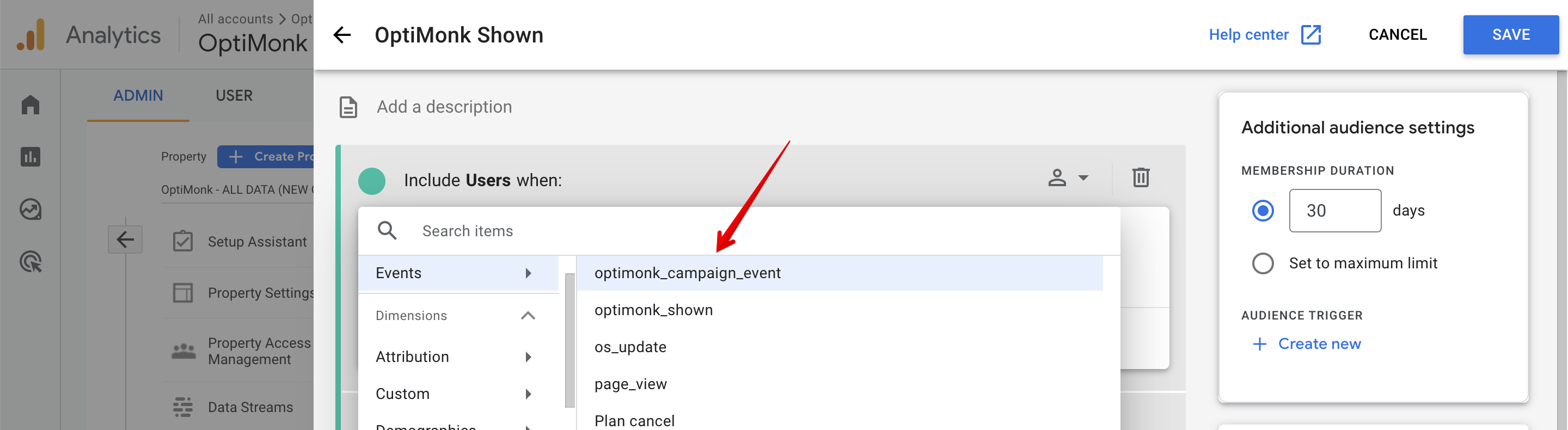
Choose OptiMonk Campaign Action as the parameter, choose the contains match type, and set it to impression.
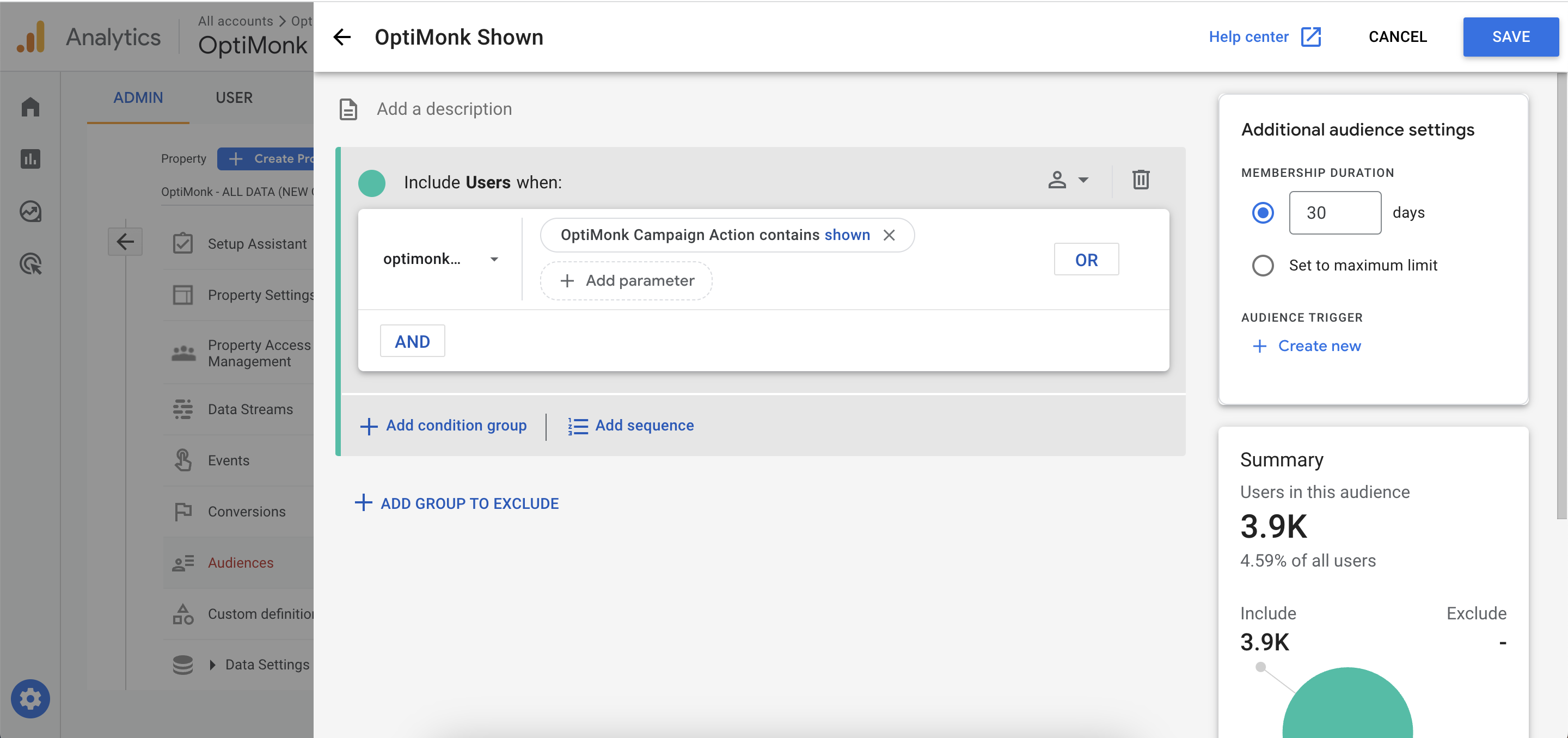
Repeat this for the conversion audience: OptiMonk Campaign Action contains conversion.
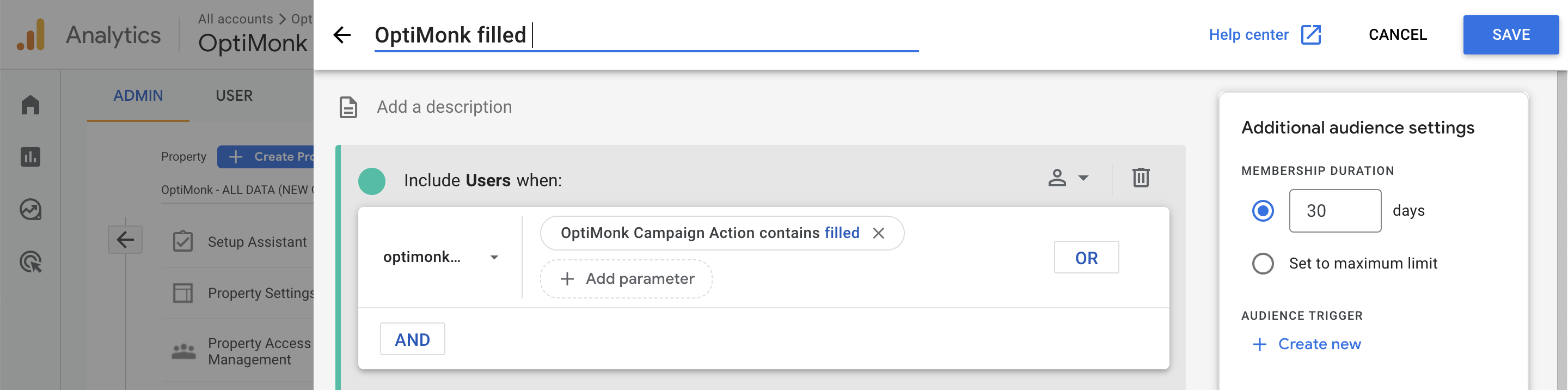
After 24 hours, you can use these audiences.
6. Use the audiences in reports
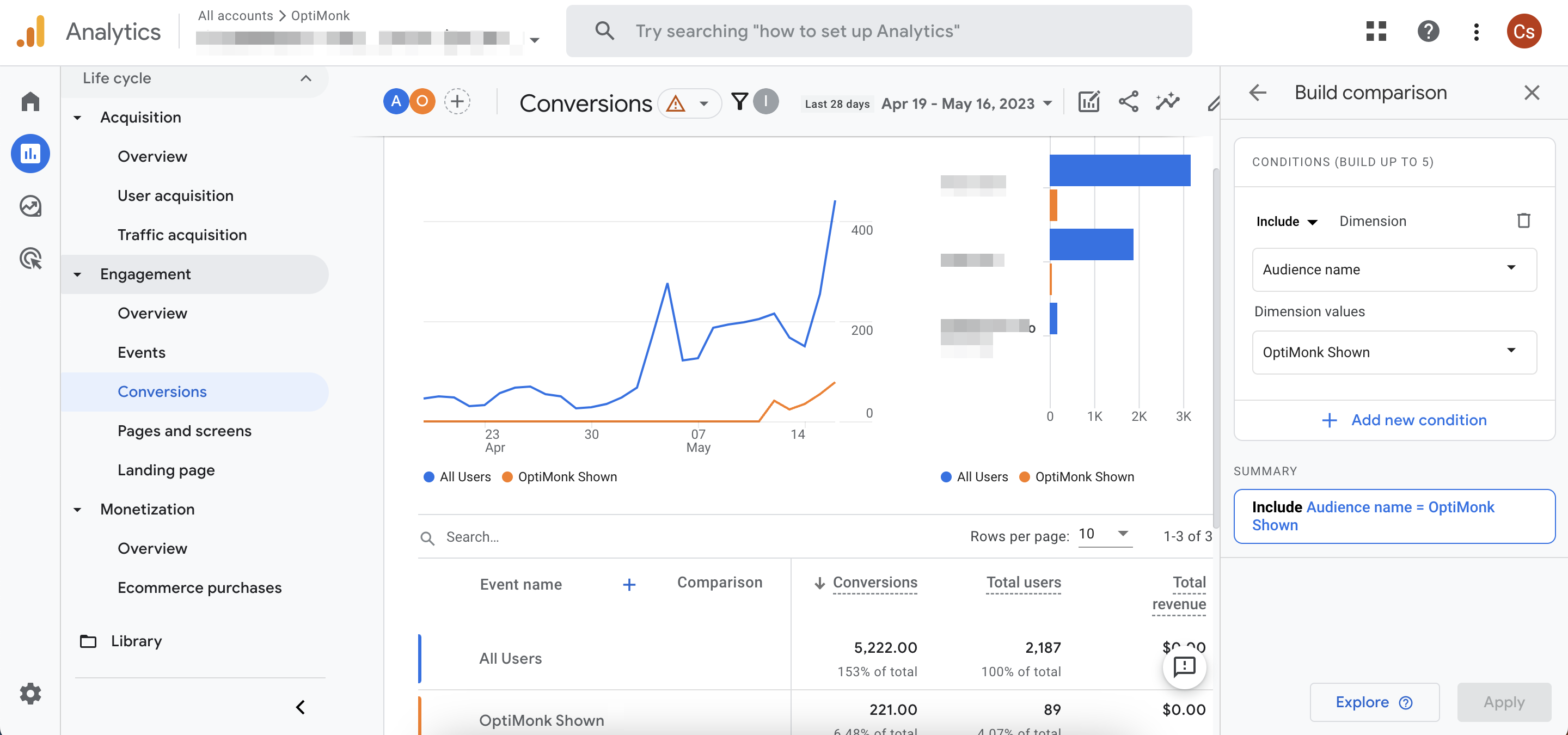
Open a report and click Add comparison.

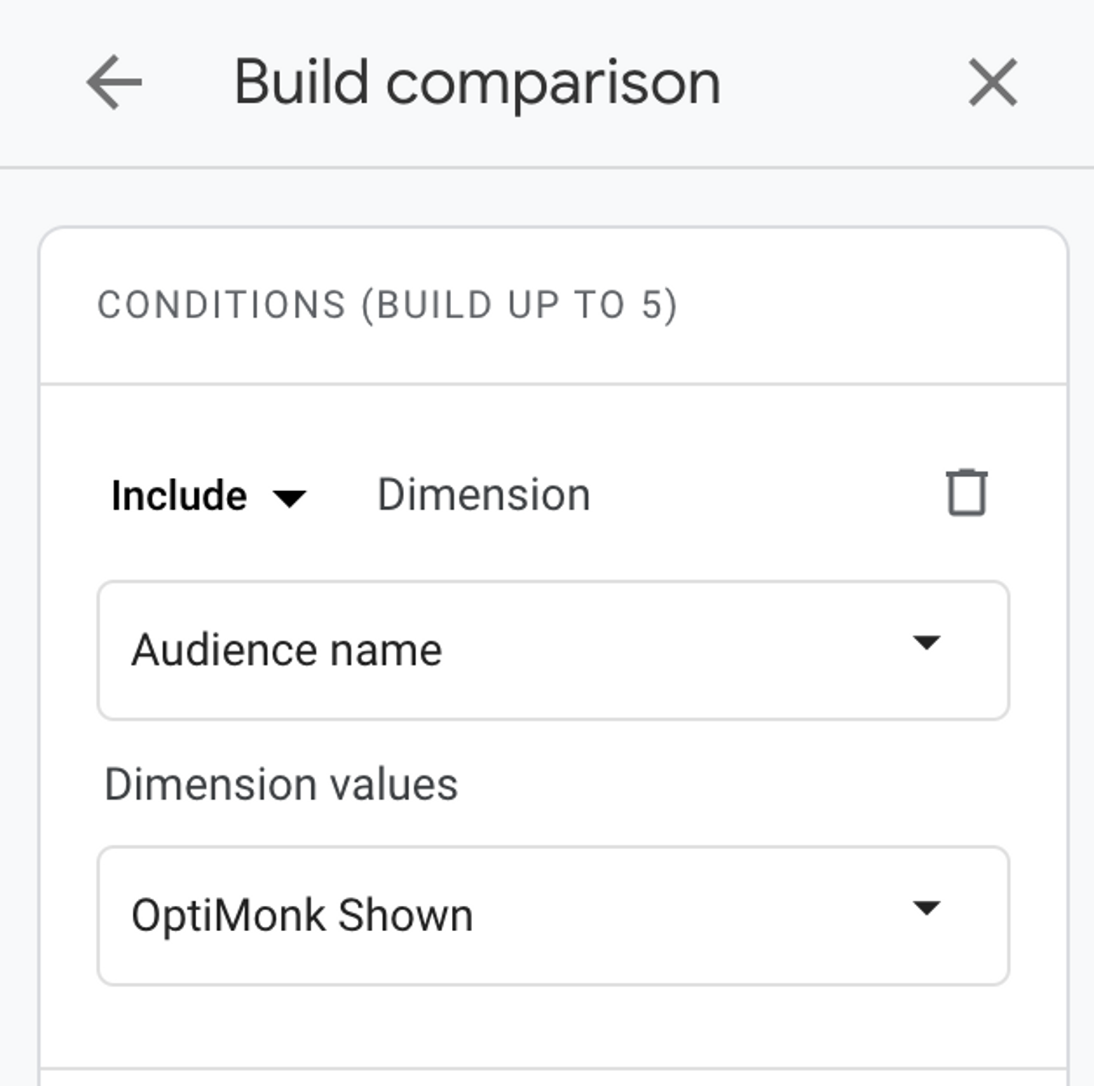
In Build comparison, choose Audience name as the dimension.
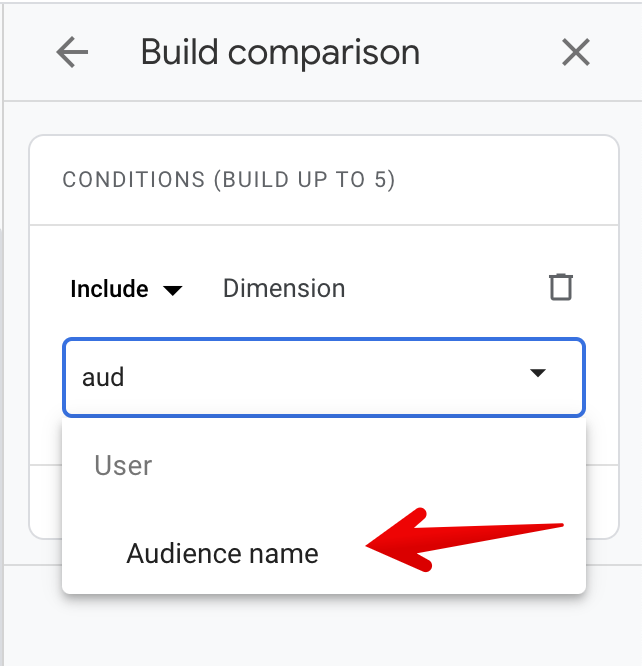
Pick OptiMonk Shown or OptiMonk Filled.